Getting Started - Create your account

Create an account
Create your Gleem AI Studio account and get access to all creation and editing tools.

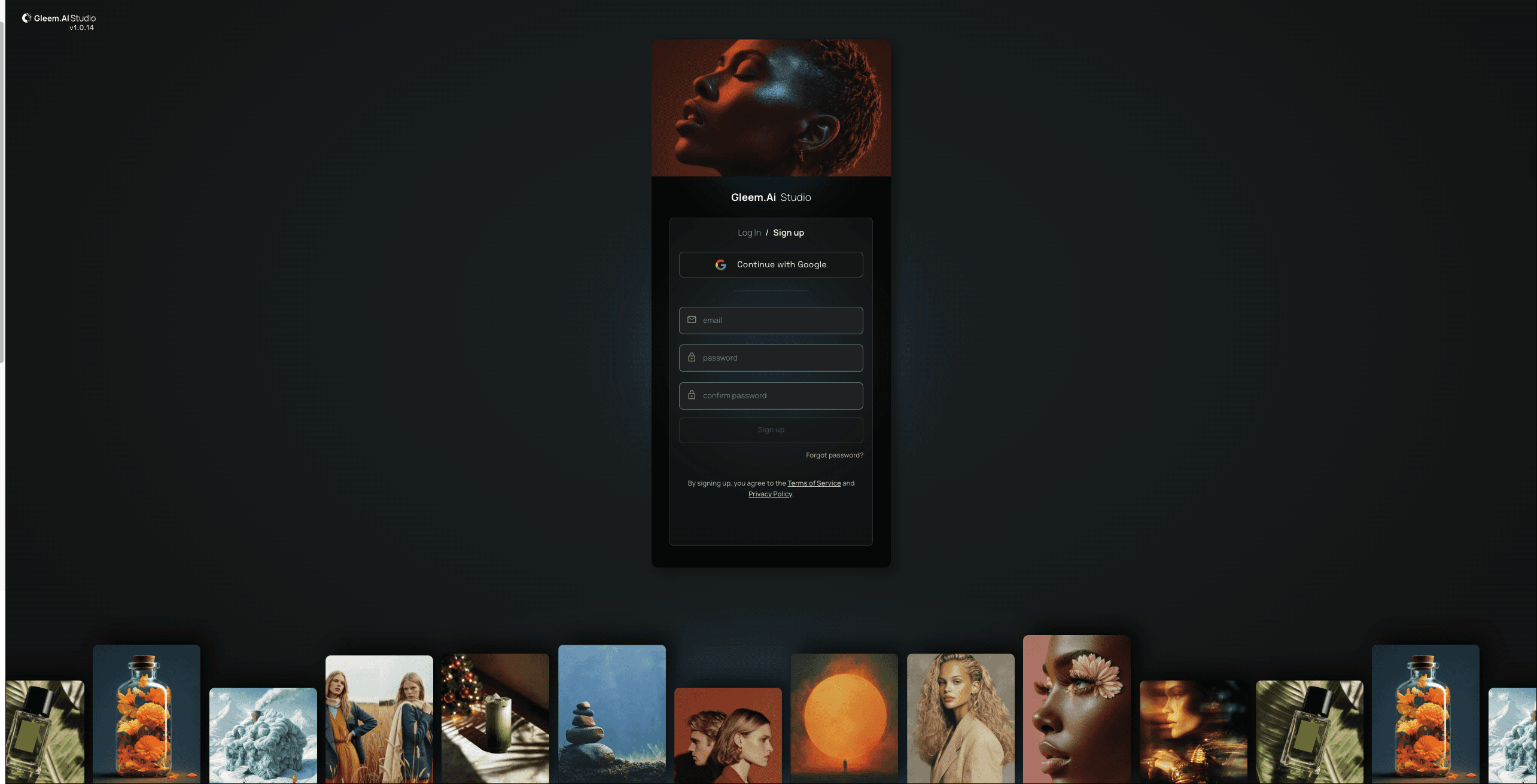
  1. Open Gleem AI Studio

  2. Choose how you want to sign up:

    • Continue with Google (fastest)

    • Or use your email and password

  3. Click Sign up

  4. Verify your email to activate your account

Once verified, you’re ready to start creating.

Create an account
Create your Gleem AI Studio account and get access to all creation and editing tools.

  1. Open Gleem AI Studio

  2. Choose how you want to sign up:

    • Continue with Google (fastest)

    • Or use your email and password

  3. Click Sign up

  4. Verify your email to activate your account

Getting Started - Projects

Projects
Projects are your main workspace in Gleem AI Studio.

Use them to:

  • Organize images by client, concept, or use case

  • Keep generations, edits, and experiments in one place

  • Easily come back to previous work or iterate further

To create a project:

  1. Go to Projects

  2. Click Create new

  3. Give your project a name

  4. Start generating or editing images inside it

Think of projects as folders for ideas that actually evolve.
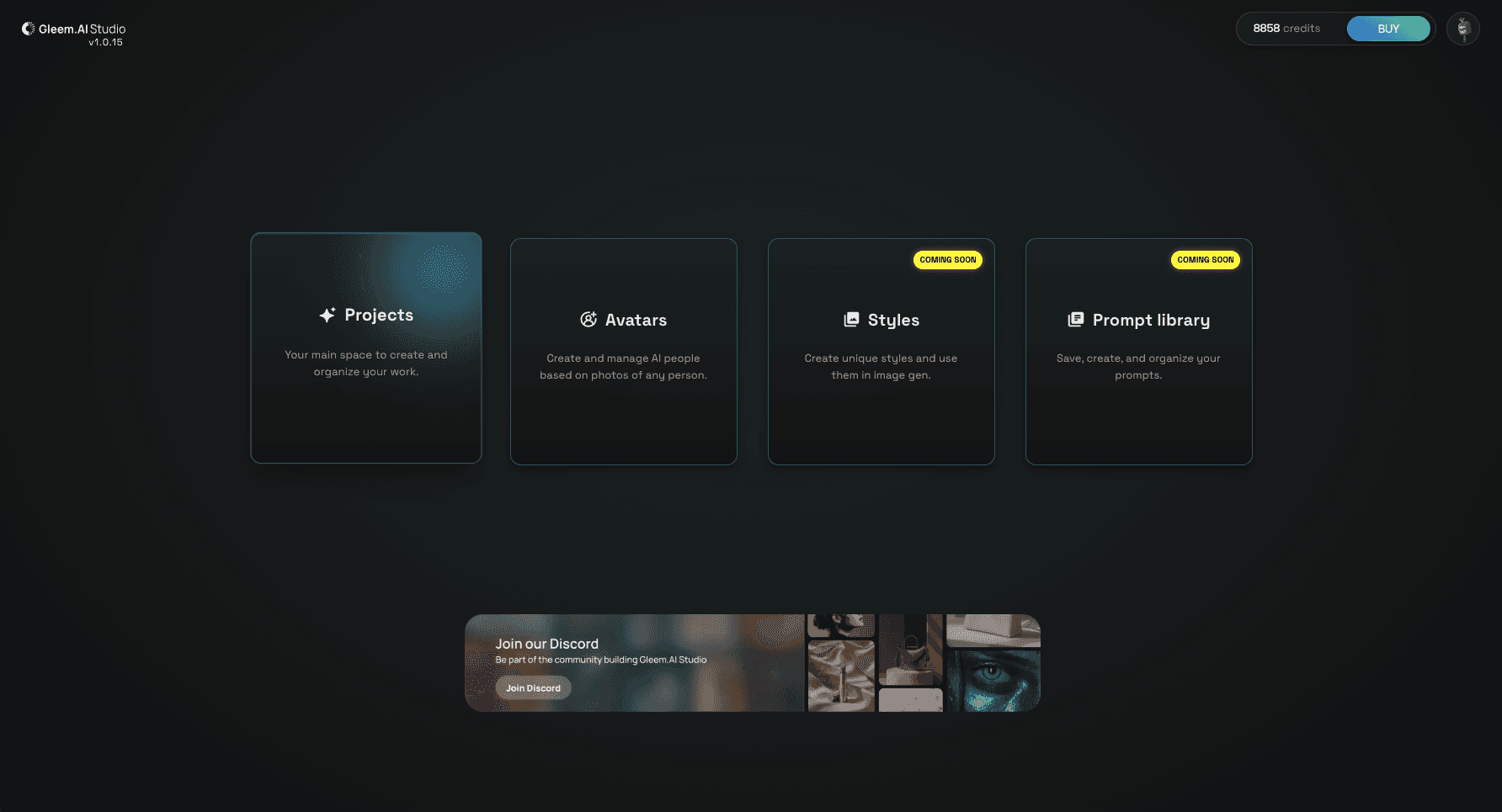
Create with AI - Generate an image

Generate an image
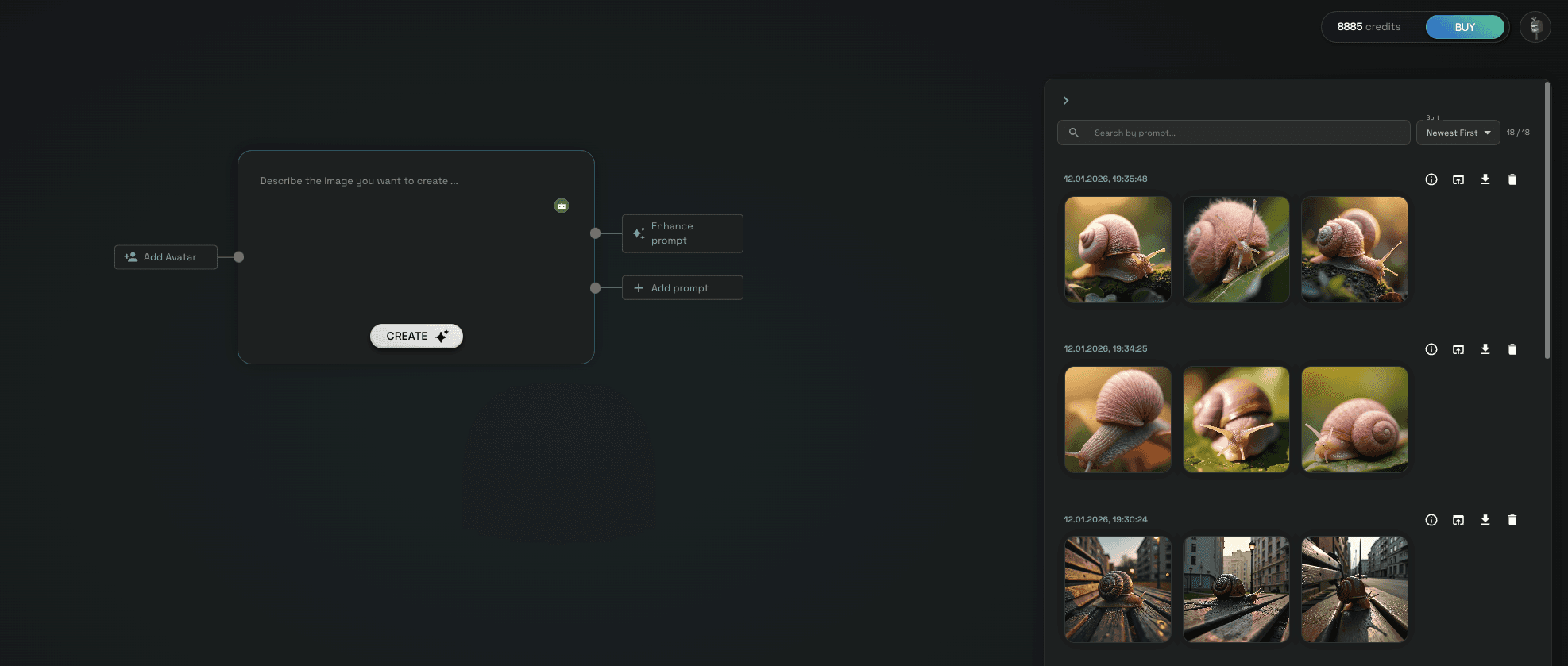
This guide shows you how to generate your first image in Gleem.AI Studio.


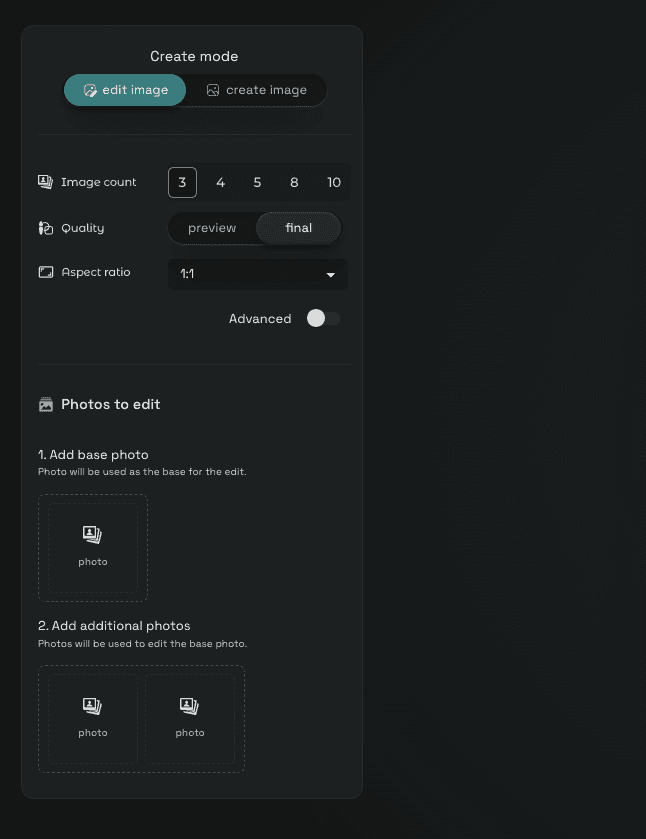
Step 1. Choose settings

  1. Open Gleem AI.Studio App

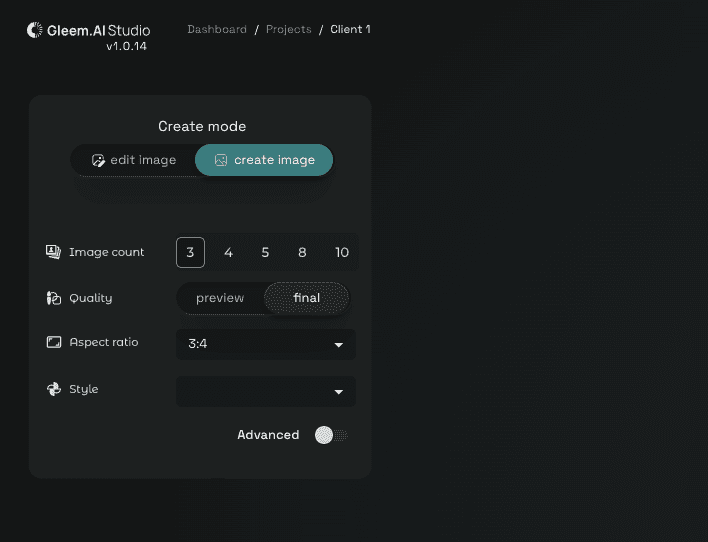
  2. From the left sidebar, select Create image

Image count

Choose how many images you want to generate: From 1 to 10 images per batch

Quality

Choose how fast you want the generation to run:
Preview – faster, lower quality

Final – slower, higher quality

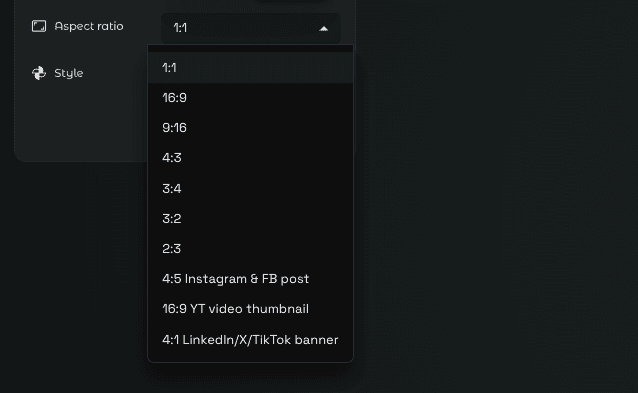
Aspect ratio

Select an aspect ratio for your images
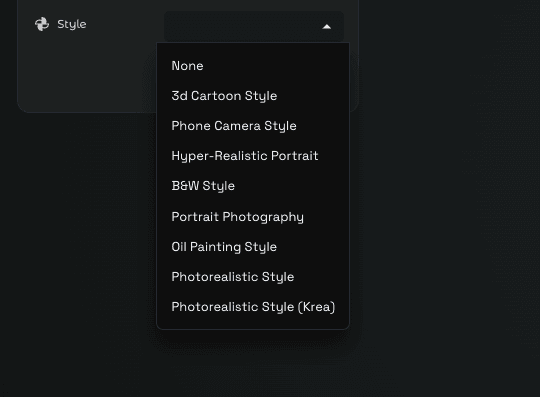
Style (optional)
Choose a visual style, or leave it set to None.
Step 2. Prompting

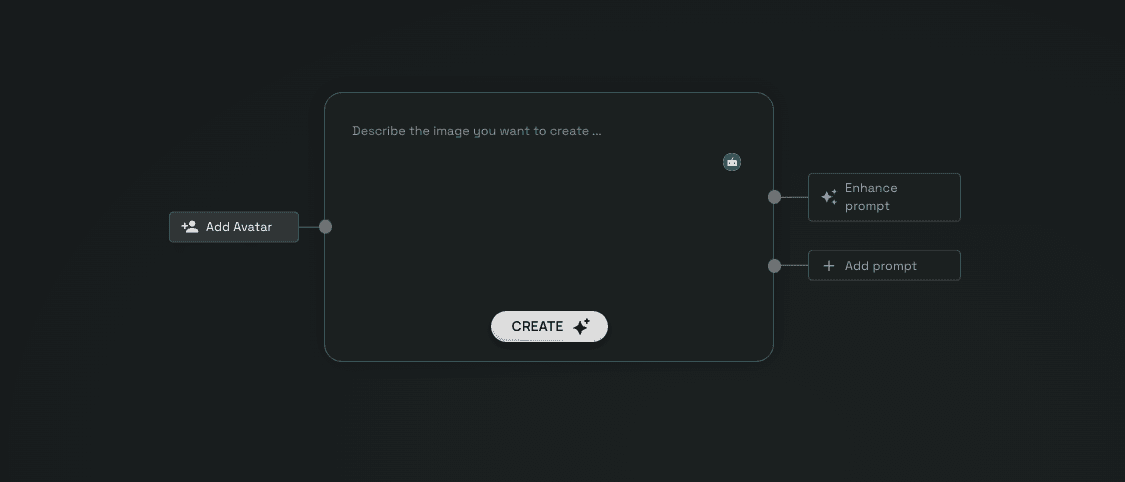
Click inside the prompt box

  • Describe the image you want to generate

  • Enhance your prompt (Optional)

  • Add a model (Optional)

  • Click Create

Step 3. View results

Your generated images will appear on the right-hand side of the screen.


From there, you can:

  • Review results

  • Select images

  • Continue editing or generate variations
Create with AI - Prompt enhance

Enhance a prompt
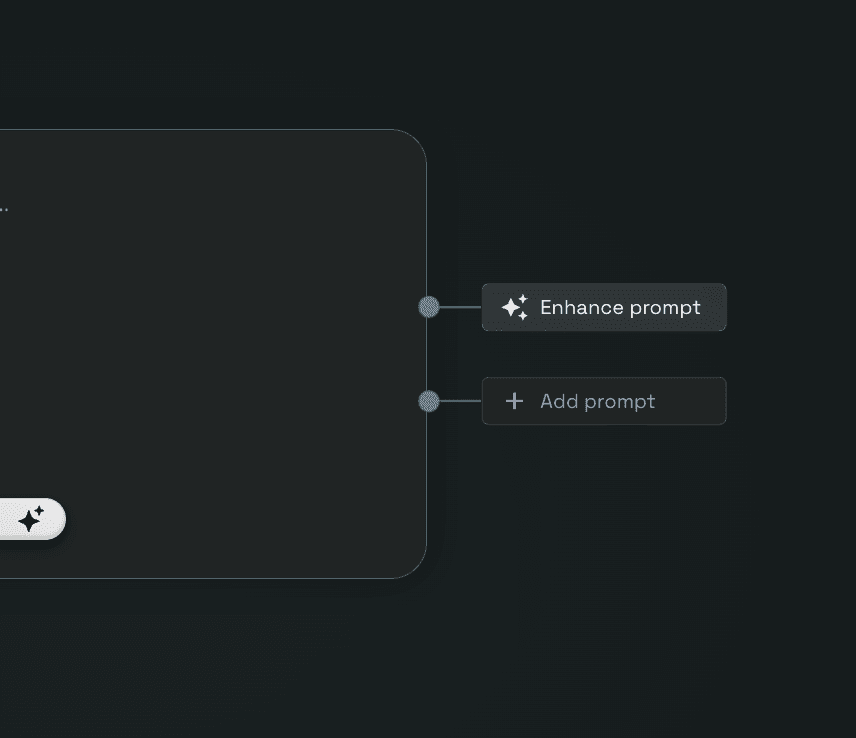
Use Prompt Enhance to improve your prompt before generating images.

Edit with AI - Overview

Edit image Mode
Use Edit image Mode to modify existing images using text prompts.

In this mode, you can edit, refine, and transform images without starting from scratch.
You can make general edits, place products, adjust poses, swap faces, or change backgrounds
- all by describing what you want to change.

All available edit options appear below the prompt box.
Edit with AI - Basic Edit

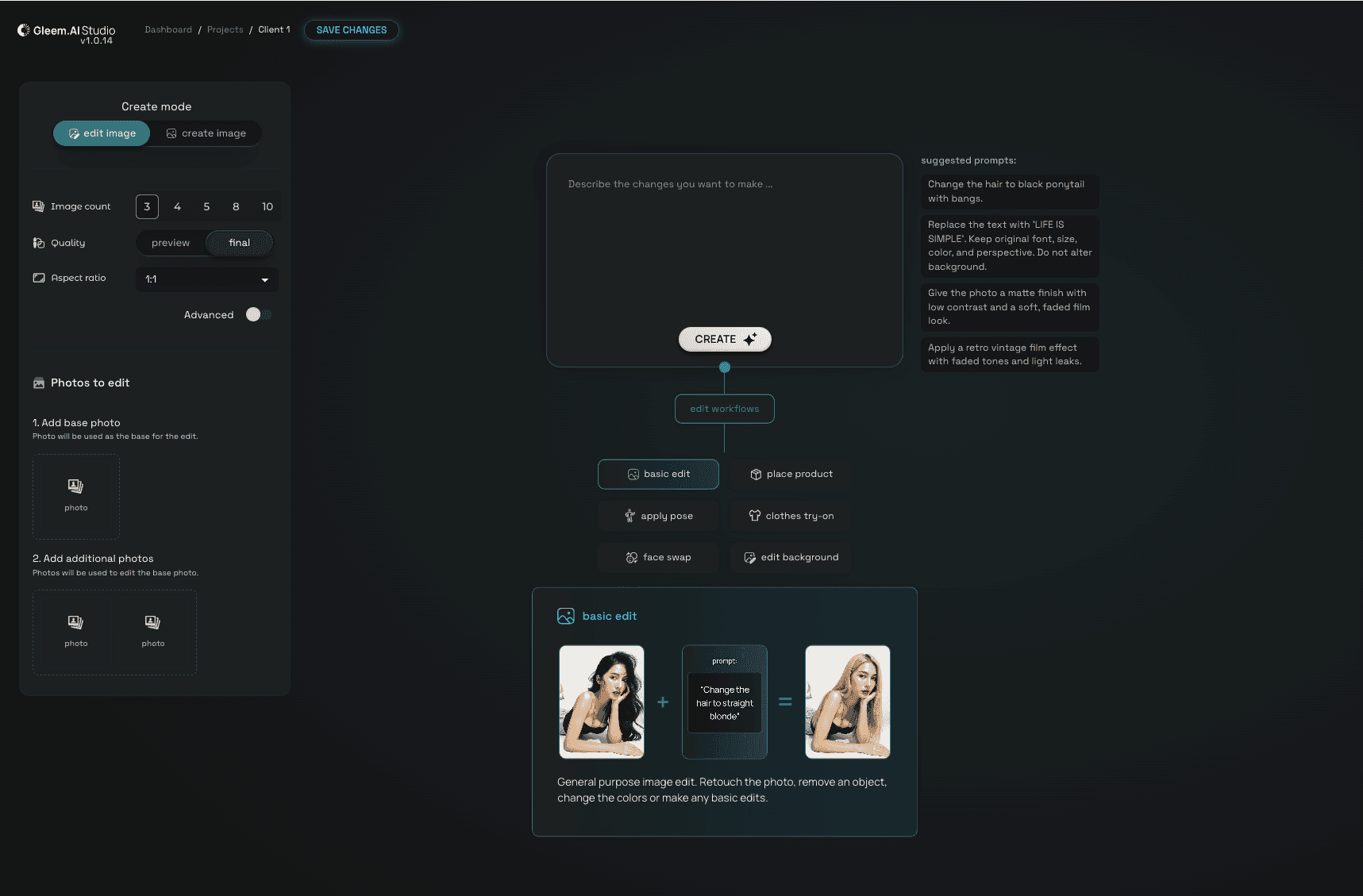
Basic Edit
Free-form image editing using text prompts. Use Basic Edit to retouch images, remove objects, adjust colors, or make general visual changes.


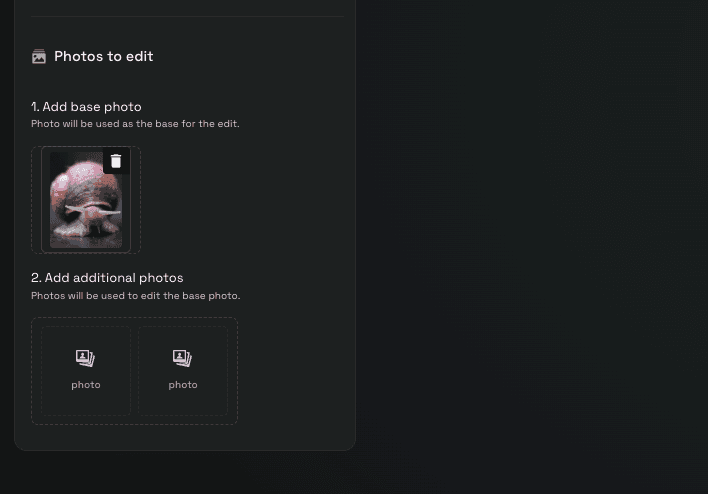
Step 1: Upload a Base photo and Additional photos

  1. Add a base photo
    This image will be used as the main image for editing.

  2. Add additional photos
    These images are used as references to guide the edit.

Step 2. Write your prompt

Example approaches:

  • Change a specific detail (hair, color, lighting)

  • Replace one element with another (object, text, background)

  • Describe the desired look or finish (style, mood, texture)

Then click Create.

Edit with AI - Place Product

Place Product
Place a product into an existing image using AI.

Use Place Product to add a product into a scene and adjust how it fits visually.


Step 1. Add images

  1. Add a base image (the scene)
    This image will be used as the main image for editing.

  2. Add a product image to place into the scene
    These product images that will be placed in the main image.

Step 2. Write your prompt

Place the product in a specific location

  • Adjust scale, angle, or perspective

  • Describe how it should blend with the scene (lighting, shadows)

Then click Create.
Edit with AI - Apply pose

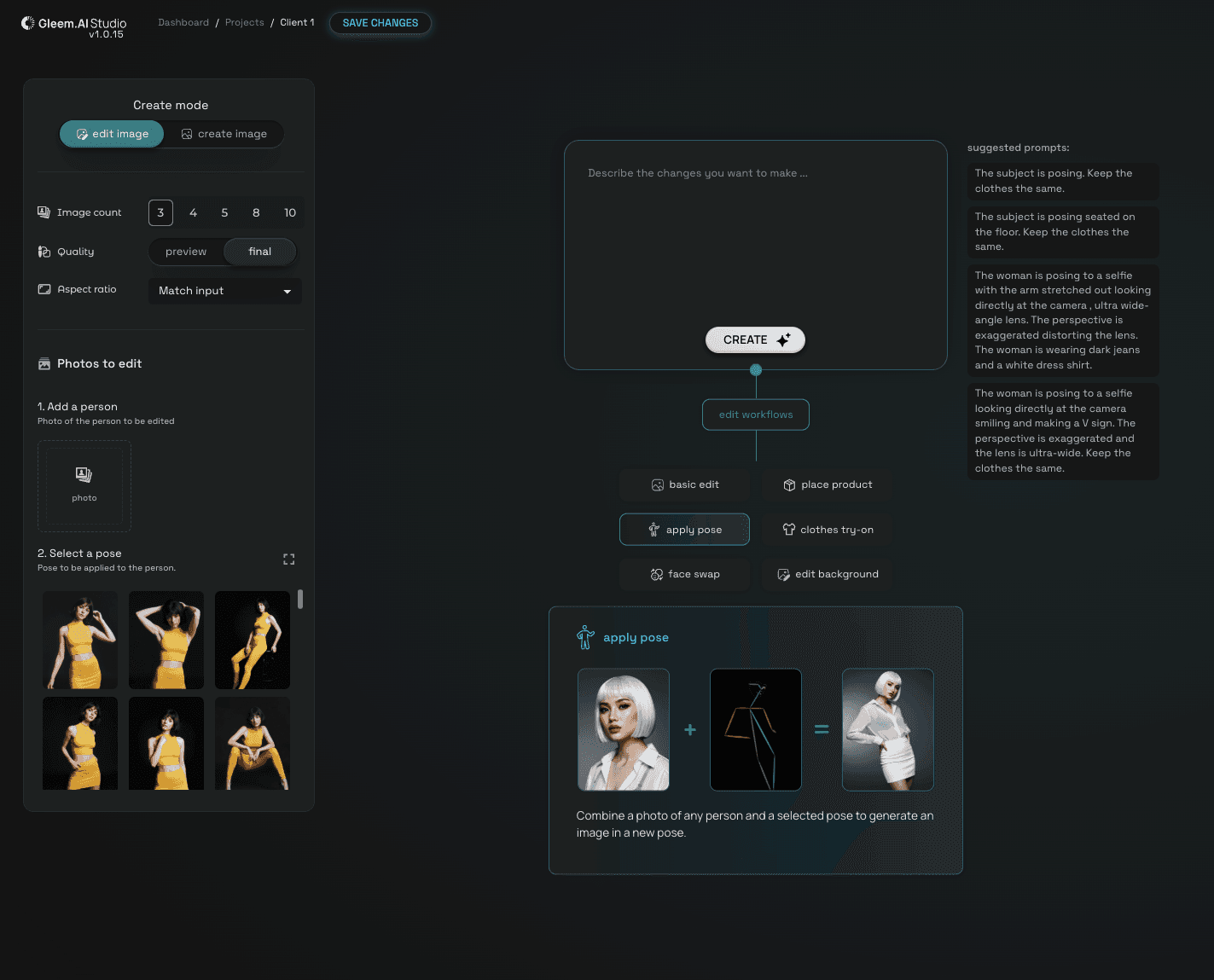
Apply Pose
Apply a new pose to a person in an image using AI.

Use Apply pose to change how a person is positioned while keeping their appearance consistent.


Step 1. Add a person and select a pose

  1. Add a photo of the person

  1. Select a pose to apply

Step 2. Write your prompt
Describe how the pose should be applied.

Example approaches

  • Apply a specific pose to the subject

  • Describe body position or orientation

  • Clarify what should stay the same (clothes, appearance)

Then click Create.
Edit with AI - Apply pose

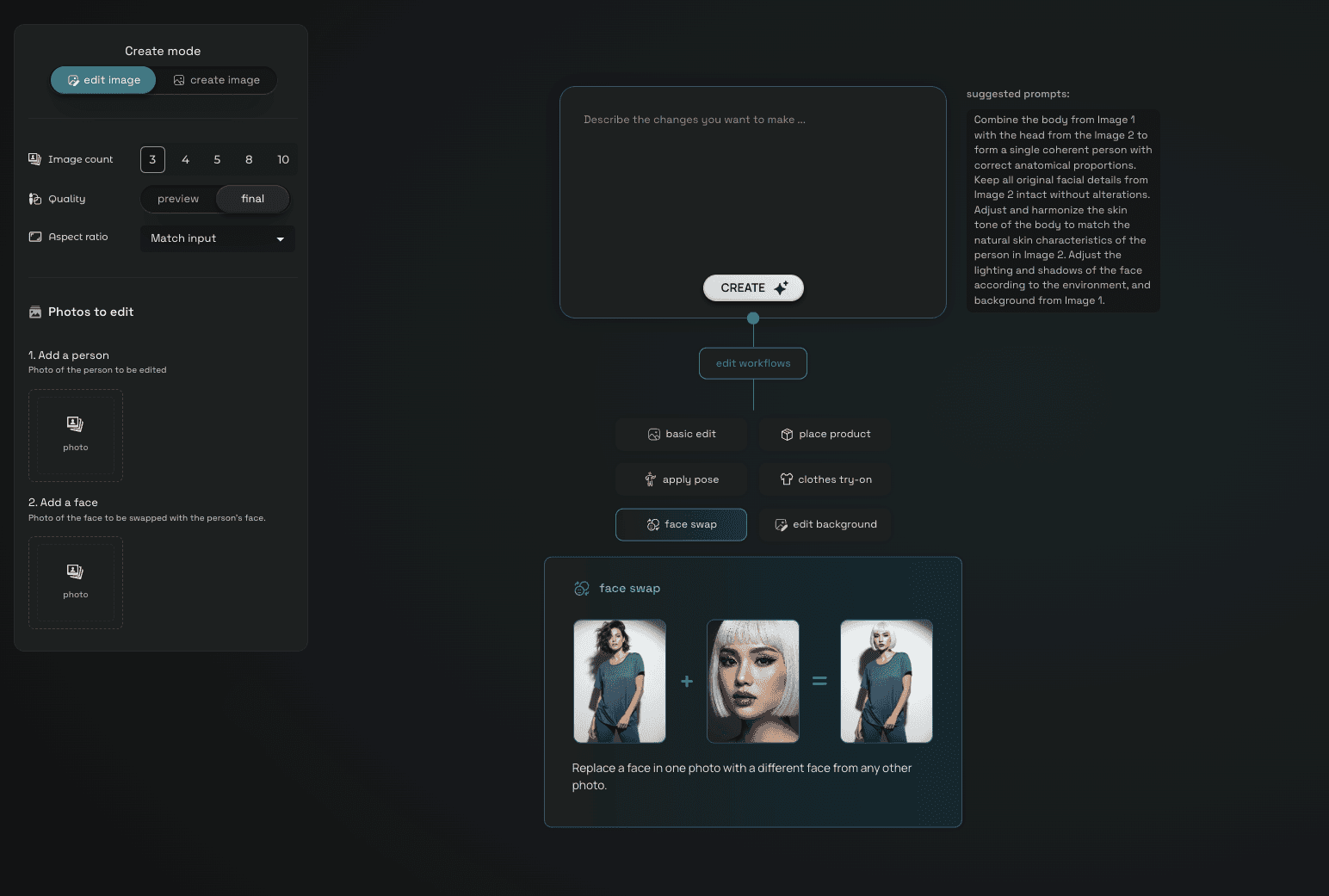
Face Swap
Replace a person’s face in an image using AI.

Use Face swap to swap faces while keeping the pose, lighting, and overall look consistent.


Step 1. Add images

  1. Add a base image (the target image)

  2. Add a face image to swap in

Step 2. Write your prompt
Describe how the face should be applied.

Example approaches

  • Swap the face with a reference image

  • Match lighting and expression

  • Keep the original pose and background

Then click Create.
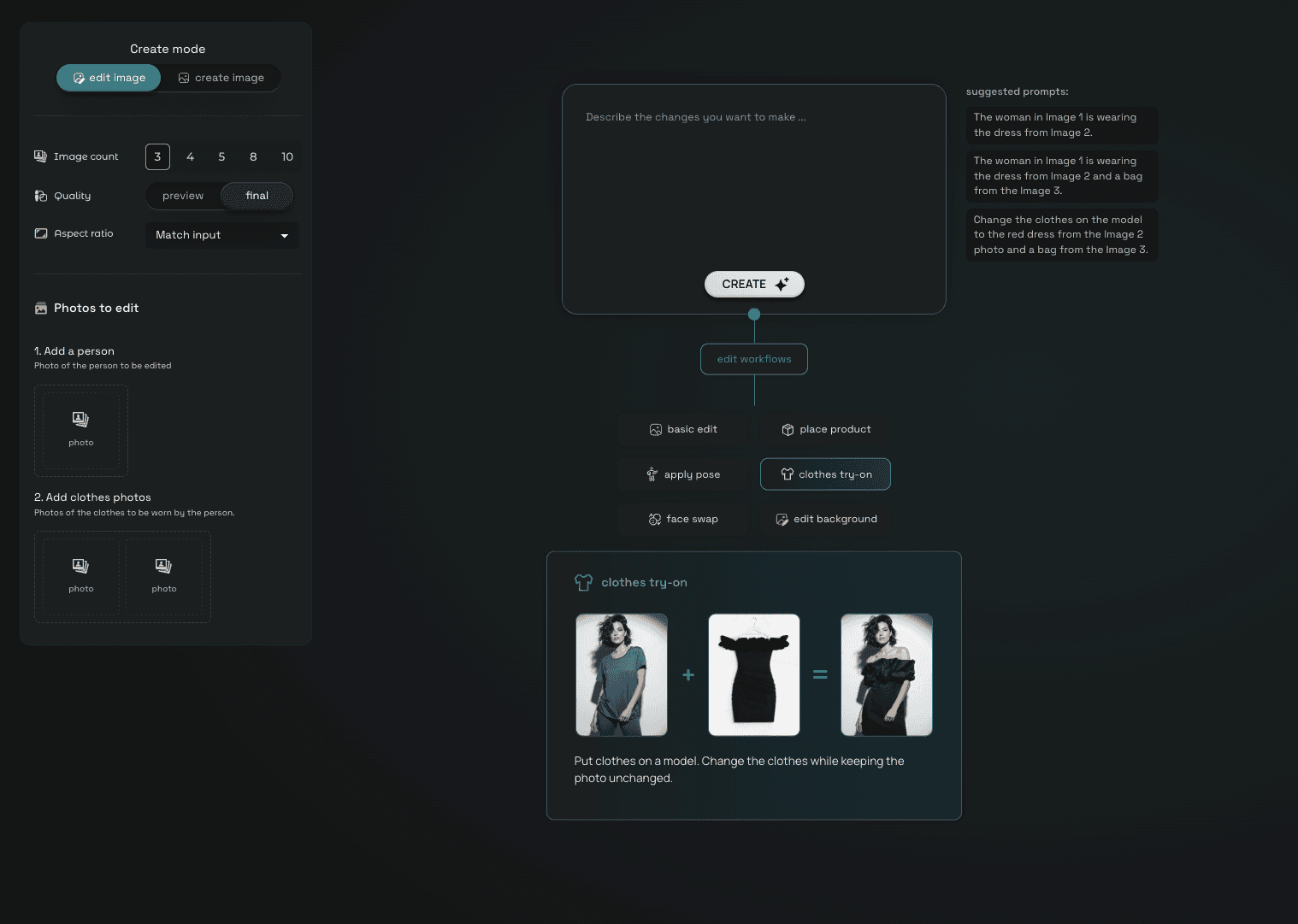
Edit with AI - Clothes Try-on

Clothes try-on
Try clothes on a model using AI.

Use Clothes try-on to change what a person is wearing while keeping the original photo intact.


Step 1. Add images

  1. Add a person image (the model)

  2. Add one or more clothing images to try on

Step 2. Write your prompt
Describe how the clothes should be applied.

Example approaches

  • Apply specific clothing items to the person

  • Combine multiple clothing references

  • Keep pose, body shape, and background unchanged

Then click Create.

Edit with AI - Edit background

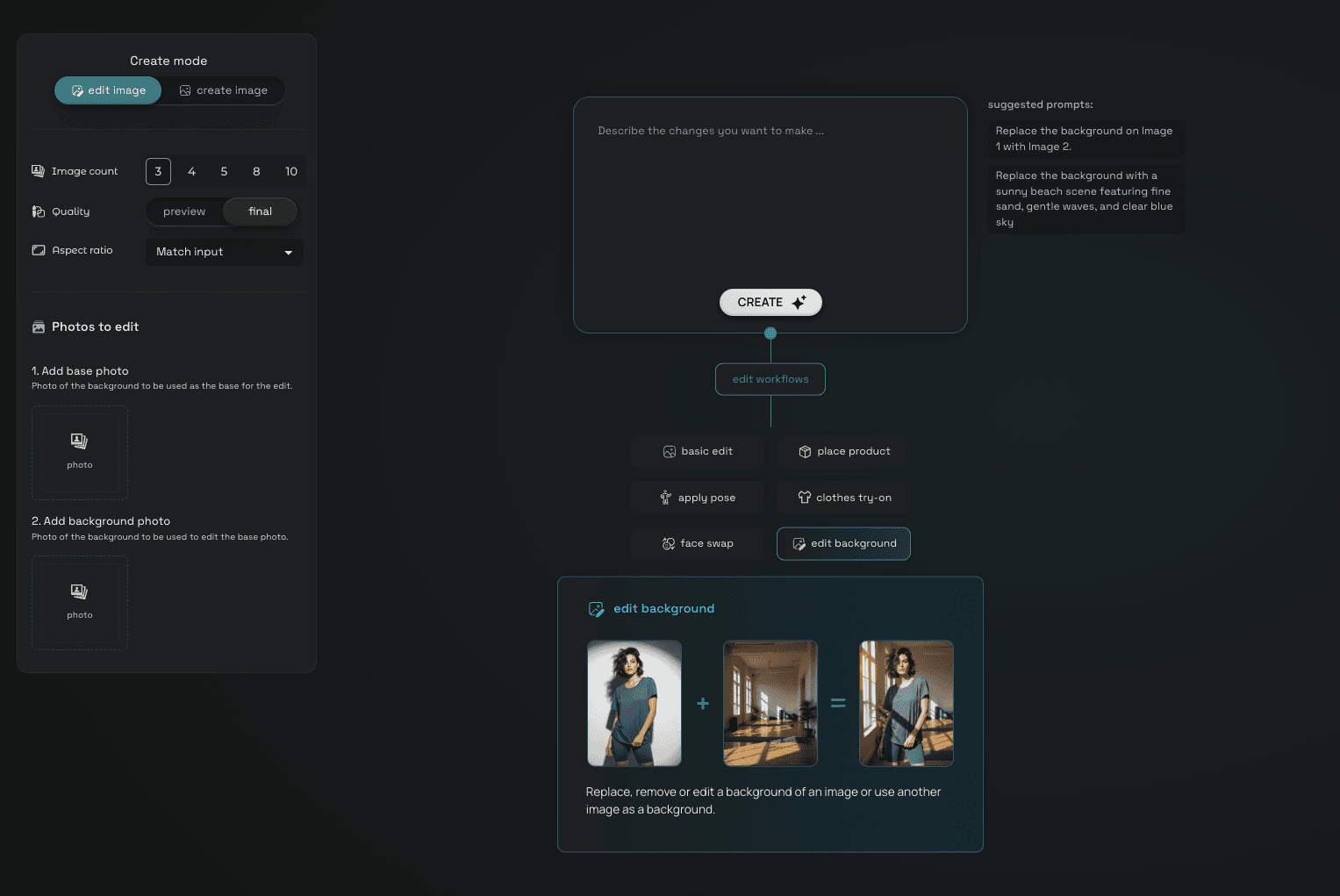
Edit background
Change the background of an image using AI.

Use Edit background to replace or modify the background while keeping the main subject unchanged.


Step 1. Add an image

  1. Add a base image with the subject you want to keep

  2. Add background photo

Step 2. Write your prompt
Describe how the background should change.


Example approaches

  • Replace the background with a new scene

  • Describe the desired environment or setting

  • Keep the subject, lighting, or perspective unchanged

Then click Create.

Avatars - Overview

Avatars
Avatars let you create AI people based on real photos and reuse them across your projects.

Once created, an avatar can be:

  • Placed into generated images

  • Edited, posed, and styled

  • Used across multiple projects without retraining

Avatars - Create an avatar
Create an avatar

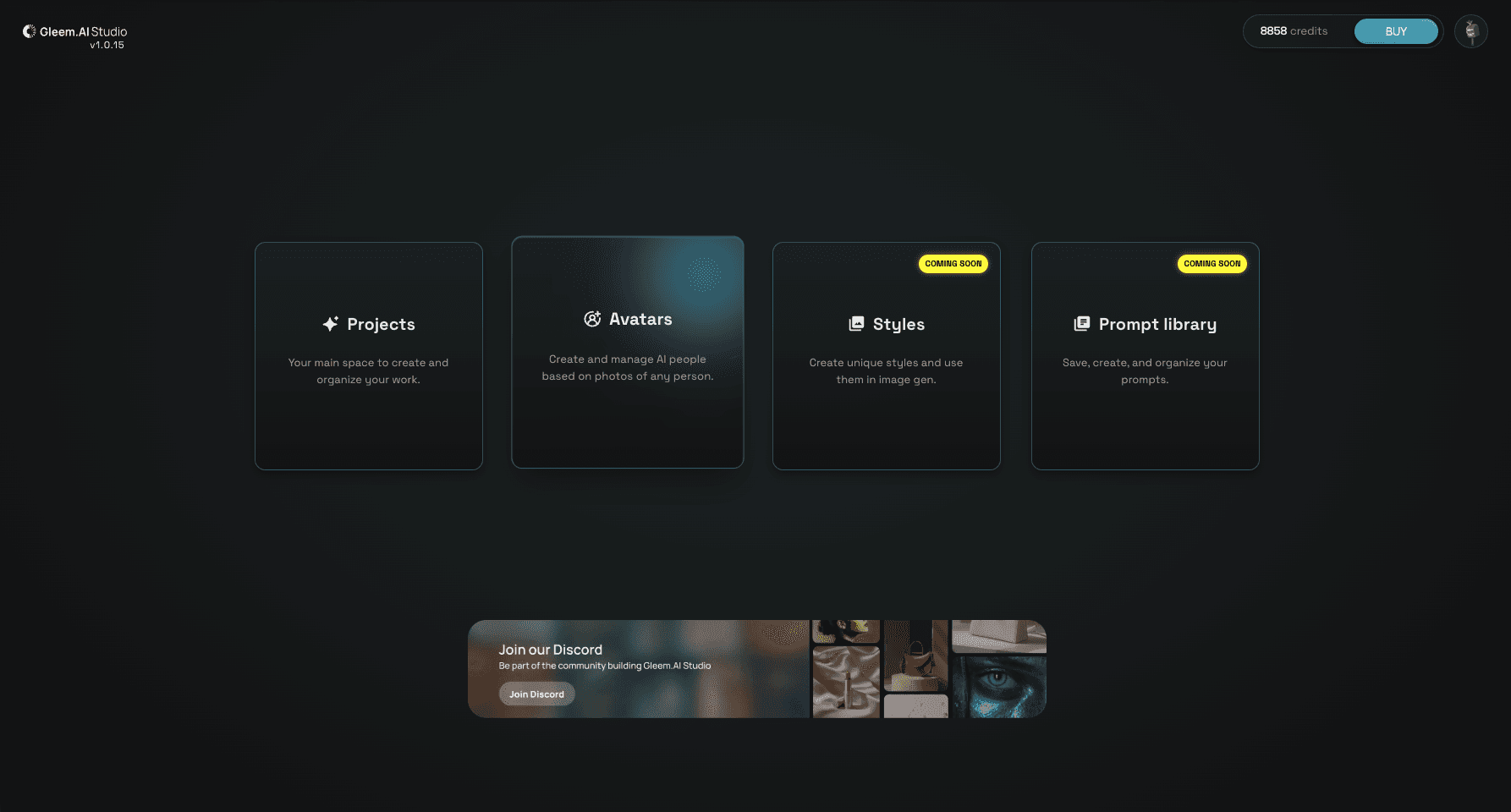
Step 1. Open Avatars

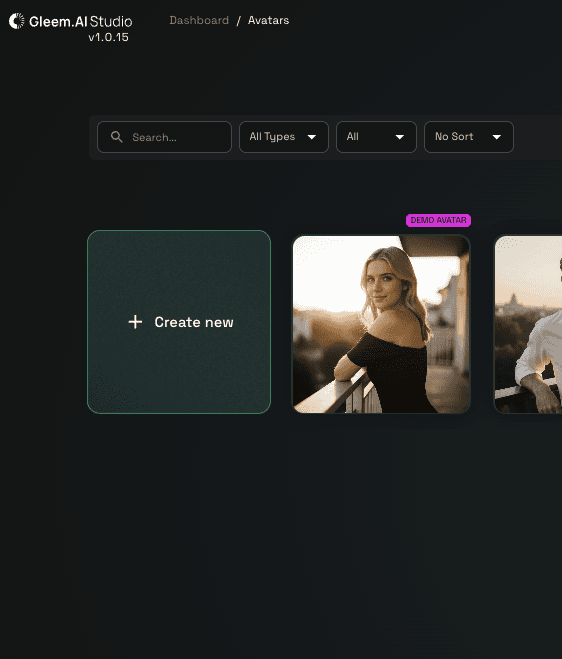
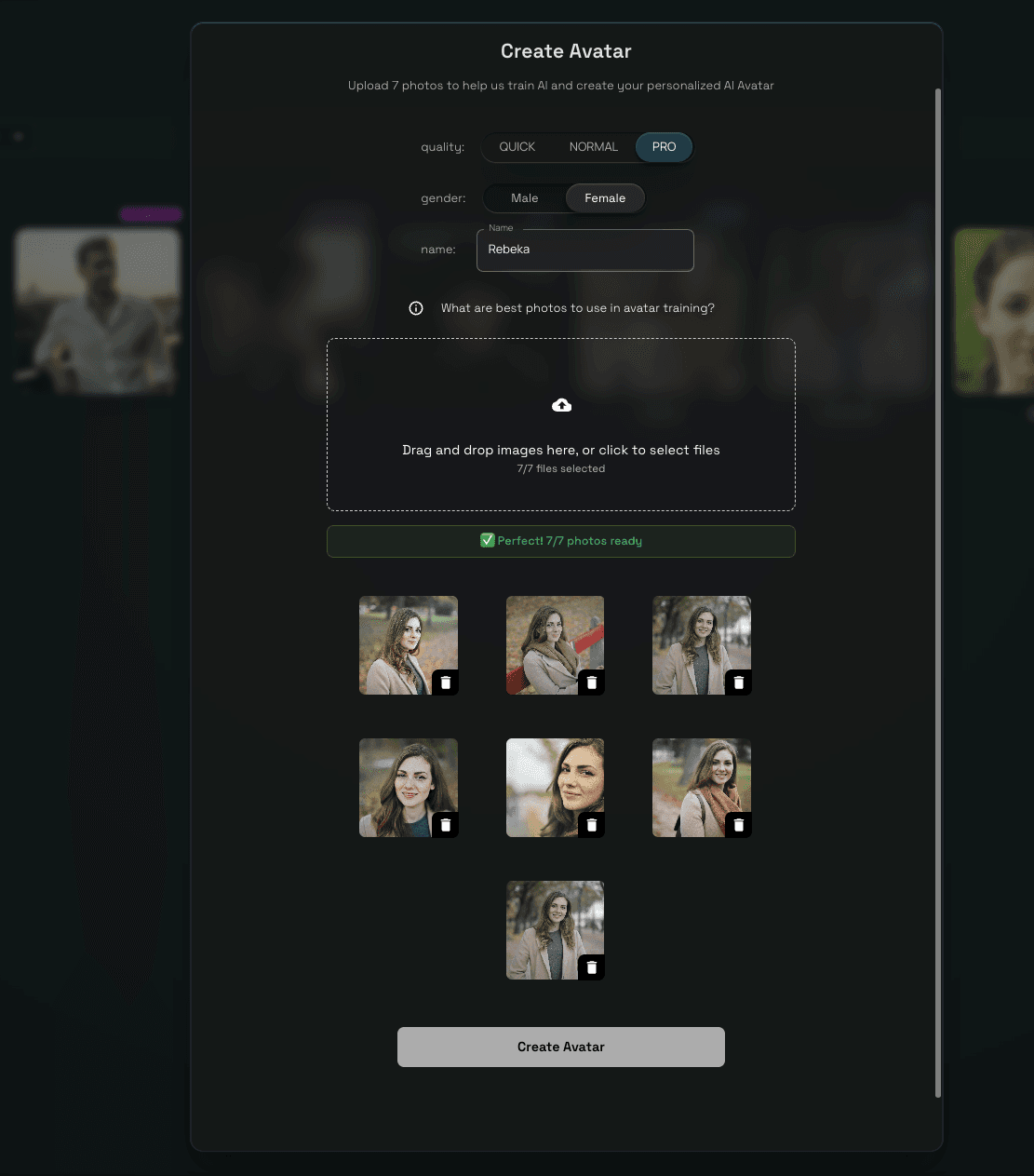
From the dashboard, go to Avatars and click Create new.

After clicking Create new, a setup panel will open where you define what kind of avatar you want to create.
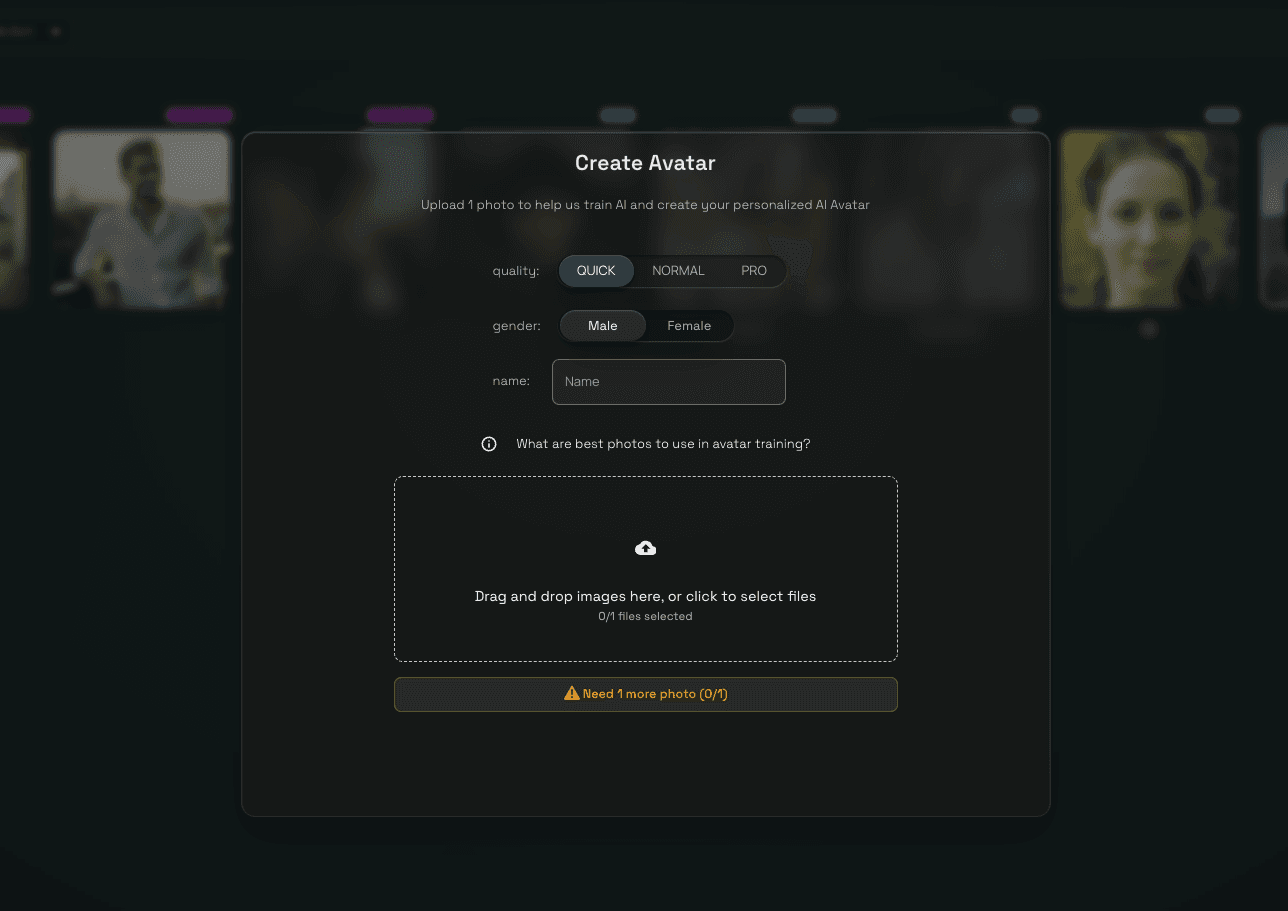
Step 2. Choose avatar quality and set details

Quick

  • Requires 1 photo

  • Fastest option

  • Best for quick tests or simple use cases

  • Normal

    • Requires 4 photos

    • Better facial consistency

    • Good balance between speed and quality

  • Pro

    • Requires 7 photos

    • Highest realism and consistency

    • Recommended for professional or repeated use
Step 3. Upload Photos

Upload the required number of photos based on the selected quality.

For best results:

  • Use clear, well-lit photos

  • Show the face from different angles

  • Avoid heavy filters or extreme expressions

Once all photos are uploaded, click Create Avatar.

The avatar will appear in your Avatars library when ready.
Avatars - Add avatar to a project

Add avatar to a project
After creating an avatar, you need to add it to a project before using it.

Step 1. Go back to the projects

Navigate to Projects and open an existing project or create a new one.
Step 2. Add Avatar to the Project

Inside the project:

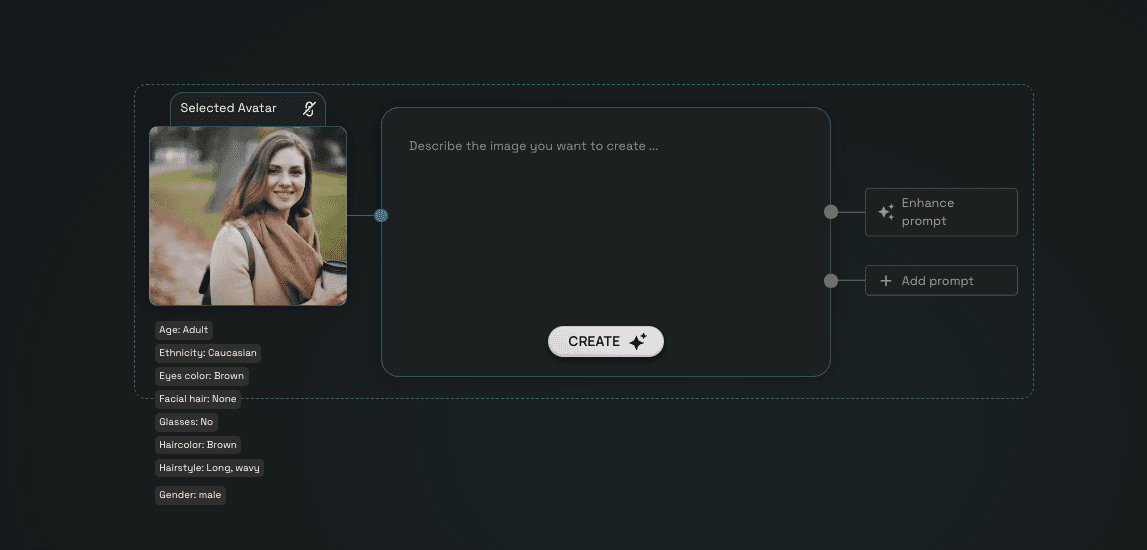
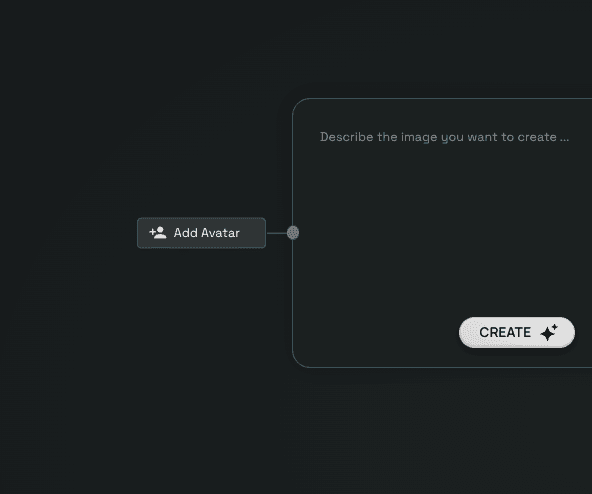
  1. Look at the left side of the Prompt Box

  2. Click Add Avatar

  3. A modal window will open with available avatars

Step 3. Avatar Details Panel

Once added, the avatar will appear on the left side of the Prompt Box with detailed attributes, such as: Age, Ethnicity, Eye color. Facial hair, Glasses, Hair color, Hairstyle, Gender

These attributes help the AI maintain consistency when generating images.

Step 4. Write your prompt
Once the avatar is added to your project, you can start creating with it.

In the prompt box:

  • Describe what you want the avatar to do or look like

  • You can be direct or descriptive — both work well

  • Click Create to generate the image